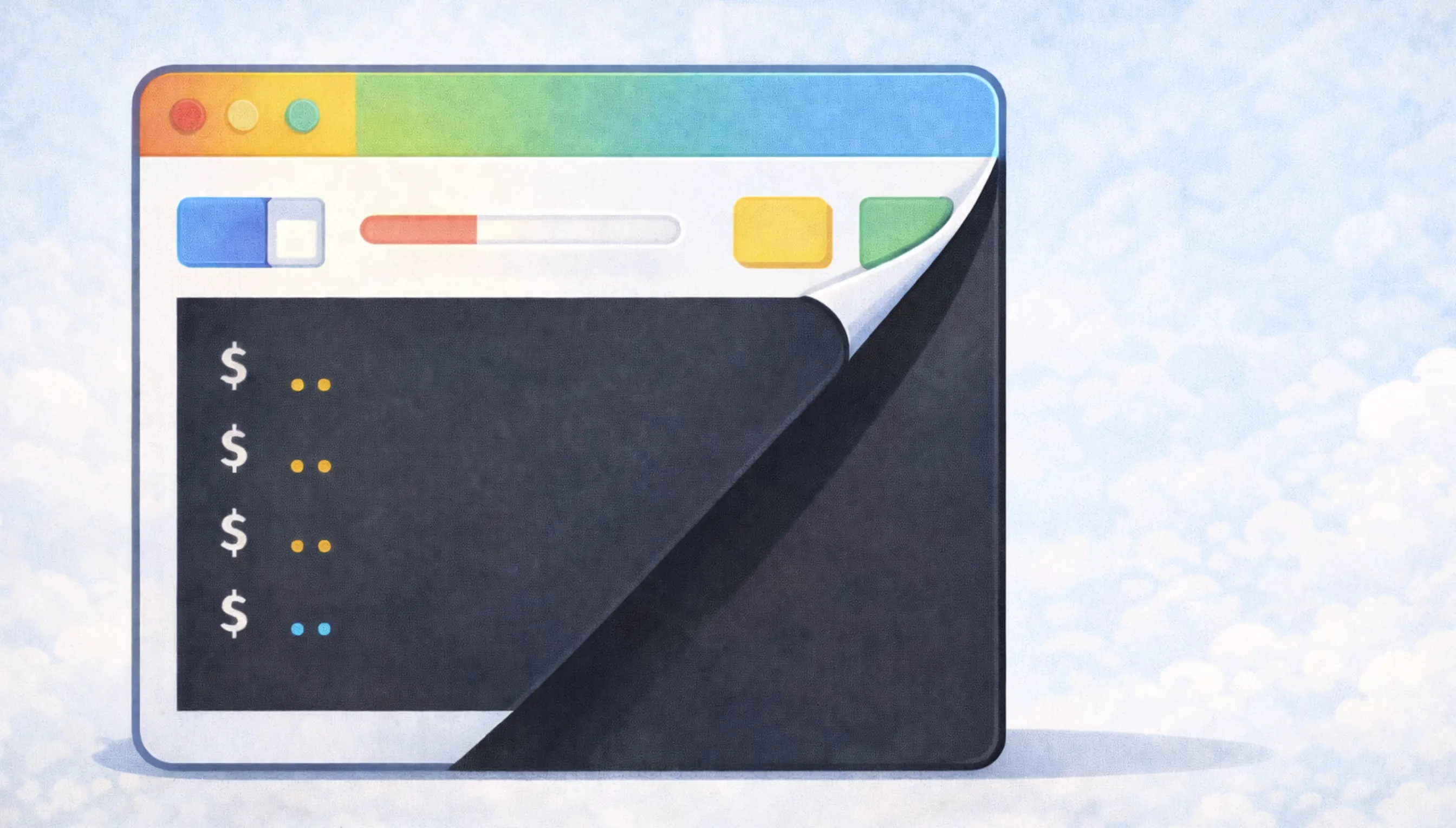
You’ve been clicking buttons in GitKraken/Fork/SourceTree for years. Here’s what those buttons actually do.
The Mental Model
Git tracks snapshots of your project. Think of it like save points in a video game.
- Working Directory → Your actual files
- Staging Area → Files you’ve marked “include these in my next save”
- Repository → All your saved snapshots (commits)
- Remote → A copy of the repository on GitHub/GitLab/etc.
Setup & Config
git init                    # Turn current folder into a git repo
git clone <url>             # Download a repo (and all its history)
git remote -v               # Show connected remote repos (origin, etc.)
git remote add origin <url> # Connect local repo to a remote
The Daily Loop (90% of your Git life)
git status                  # What's changed? What's staged? (run this constantly)
git add <file>              # Stage a file for commit
git add .                   # Stage ALL changes
git commit -m "message"     # Save staged changes with a description
git push                    # Upload commits to remote
git pull                    # Download + merge changes from remote
What’s actually happening:
add= “I want this change in my next commit”commit= “Save a snapshot locally”push= “Upload my snapshots to the server”pull= “Download their snapshots and merge into mine”
Branching (This is Git’s Superpower)
git branch                  # List all local branches
git branch <name>           # Create a new branch (doesn't switch to it)
git switch <branch>         # Switch to a branch (modern way)
git checkout <branch>       # Switch to a branch (old way, still works)
git switch -c <name>        # Create AND switch to new branch
git checkout -b <name>      # Same thing, old syntax
git branch -d <name>        # Delete a branch (safe - won't delete unmerged work)
git branch -D <name>        # Force delete a branch
What’s a branch? Just a pointer to a commit. That’s it. Creating a branch is instant and free.
Merging & Rebasing
git merge <branch>          # Merge another branch INTO your current branch
git rebase <branch>         # Replay your commits on top of another branch
Merge vs Rebase:
merge= Creates a “merge commit” joining two histories. Safe, preserves history.rebase= Rewrites history to look linear. Cleaner, but don’t do it on shared branches.
Golden rule: Never rebase commits that others have pulled.
Seeing What Happened
git log                     # Show commit history
git log --oneline           # Compact view (way more useful)
git log --oneline --graph   # Show branch structure visually
git diff                    # Show unstaged changes
git diff --staged           # Show staged changes (what will be committed)
git diff <branch1> <branch2> # Compare two branches
git show <commit>           # Show a specific commit's changes
Undoing Things
git restore <file>          # Discard changes in working directory (can't undo!)
git restore --staged <file> # Unstage a file (keep the changes, just don't commit them)
git reset --soft HEAD~1     # Undo last commit, keep changes staged
git reset --mixed HEAD~1    # Undo last commit, keep changes but unstaged (default)
git reset --hard HEAD~1     # Undo last commit, DELETE all changes (dangerous!)
git revert <commit>         # Create a NEW commit that undoes an old one (safe for shared history)
Reset vs Revert:
reset= Time travel. Rewrites history. Only use on unpushed commits.revert= Creates an “undo commit”. Safe for shared/pushed history.
Stashing (Temporary Storage)
git stash                   # Save uncommitted changes and clean working directory
git stash pop               # Restore most recent stash and delete it
git stash list              # Show all stashes
git stash apply             # Restore most recent stash but keep it
git stash drop              # Delete most recent stash
When to use: You need to switch branches but have uncommitted work you’re not ready to commit.
Working with Remotes
git fetch                   # Download from remote WITHOUT merging
git pull                    # fetch + merge (git fetch && git merge)
git push                    # Upload to remote
git push -u origin <branch> # Push AND set upstream (first push of a new branch)
git push --force-with-lease # Force push, but safely (won't overwrite others' work)
fetch vs pull:
fetch= “Show me what’s new on the server” (safe, just downloads)pull= “Download AND merge it into my branch” (can cause merge conflicts)
Quick Reference: Common Scenarios
| I want to… | Command |
|---|---|
| Start fresh from GitHub | git clone <url> |
| See what I’ve changed | git status |
| Save my work | git add . → git commit -m "msg" → git push |
| Get latest from team | git pull |
| Start a new feature | git switch -c feature-name |
| Finish a feature | git switch main → git merge feature-name |
| Undo uncommitted changes | git restore <file> |
| Undo my last commit | git reset --soft HEAD~1 |
| See what happened | git log --oneline |
| Temporarily save work | git stash → do stuff → git stash pop |
The Stuff That’ll Save You
git status          # When confused, run this
git log --oneline   # See where you are in history
git reflog          # "Oh no" recovery - shows EVERYTHING you've done
reflog is your emergency parachute. Even if you think you’ve lost commits, git reflog shows all recent actions and lets you recover.
That’s it. These 20ish commands cover 99% of daily Git usage.
Git GUI Tools
If you prefer a visual interface (no shame in that), here are the popular options:
| Tool | Platform | Notes |
|---|---|---|
| GitKraken | Win/Mac/Linux | Polished UI, great visualizations. Free tier available. |
| Fork | Win/Mac | Fast, clean, lightweight. Free. |
| Sourcetree | Win/Mac | Free, by Atlassian. Feature-rich but can be slow. |
| GitHub Desktop | Win/Mac | Simple, beginner-friendly. Best for GitHub workflows. |
| Tower | Win/Mac | Premium, very polished. Paid only. |
| Sublime Merge | Win/Mac/Linux | From Sublime Text makers. Fast, keyboard-driven. |
| Lazygit | Win/Mac/Linux | Terminal UI. Best of both worlds. |
Built into editors:
- VS Code — Source Control panel + GitLens extension
- JetBrains IDEs — Excellent built-in Git support
- Xcode — Basic but functional for Apple devs
Pro tip: Use a GUI for visualization and complex operations (merge conflicts, interactive rebase, history browsing), but learn the CLI for scripting and when things go wrong.